Better Backup Management Starts Here
 Click to enlarge
Default Dashboard
Here you’ll get a visual overview of all your recent backup results. You can see each client, the successes, failures, and those with no result.Customizable Setup
You can customize this home dashboard to fit your workflow. This can be changed to show backups by vendor, by client, or other custom setups.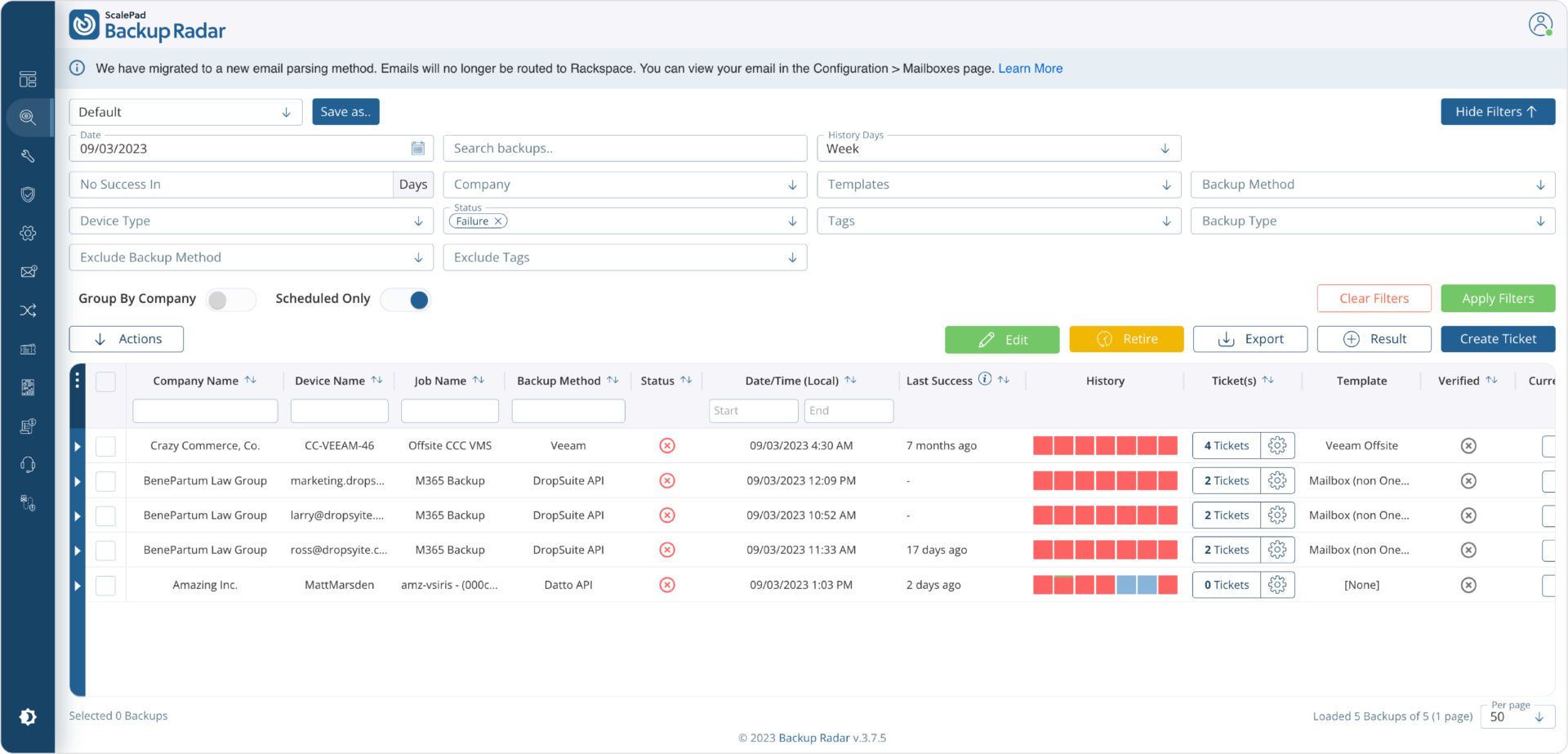 Click to enlarge
Audit Screen
Get a closer look at a specific backup. You can filter to find exactly what you’re looking for. This example shows the details of a failed backup and lists what you need to know:• Client
• Device and backup method
• Current status and history of backup results
• Last successful backup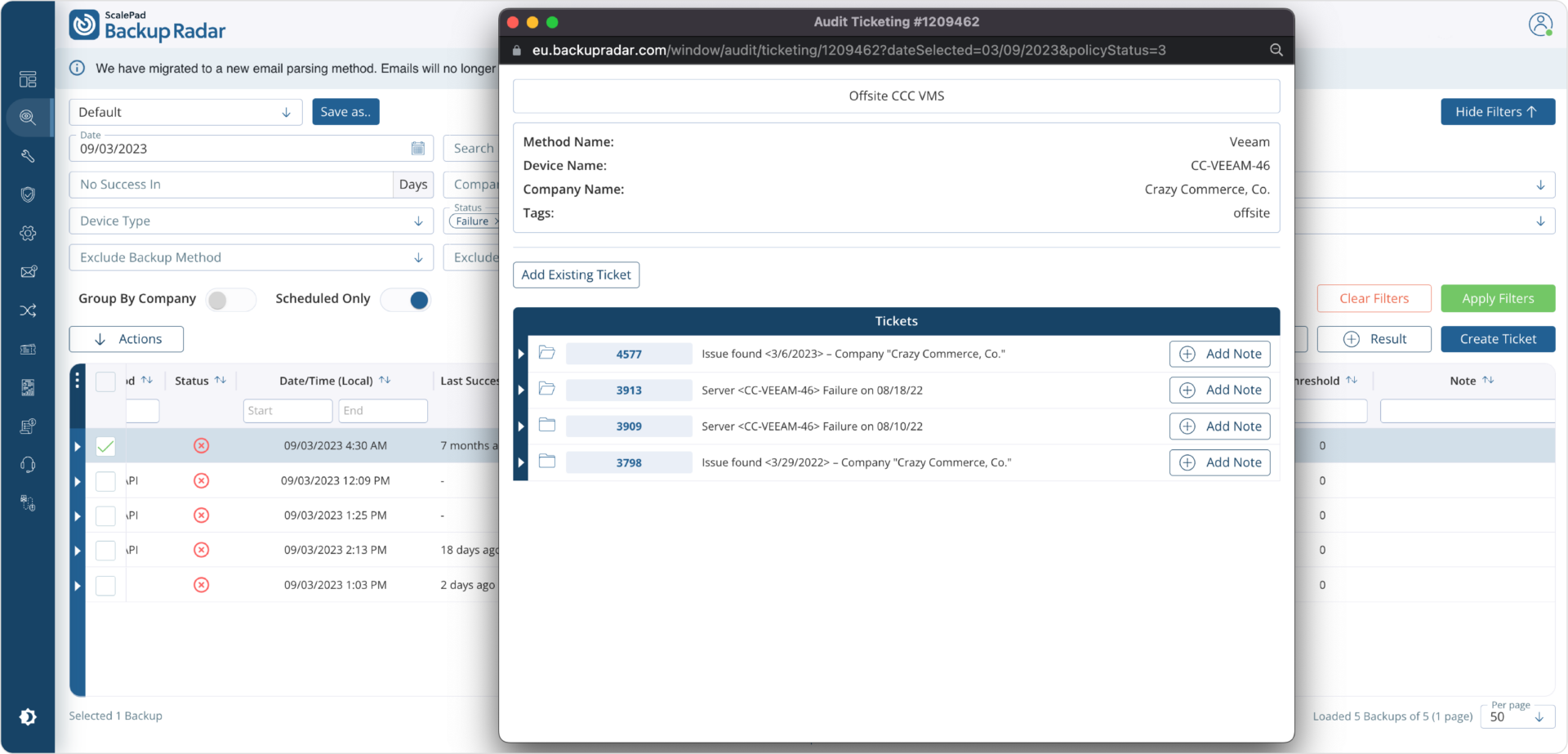 Click to enlarge
Ticketing
Forward all your backup alerts to your Backup Radar alert mailbox. From here, intelligent ticketing will automatically parse, append, and close tickets as necessary. This can be set up so you only see exactly what you need to see.
In the Audit Ticketing screen you can open up the appended tickets to reveal the details of each ticket Backup Radar has handled. Click to enlarge
Reports
With five different backup reports, five different compliance reports, and several other reports — there’s plenty of data to share.
The Weekly Backup Report shows the results from the last seven days for a specific client. The color coding system makes it easy to do a quick visual check for green-is-good results.

Start Managing Backups With Backup Radar
Sign up for Backup Radar and populate your dashboards with your own client backups. You’ll have three onboarding sessions to configure Backup Radar to your unique backup workflow.
Sign Up Now