



What's New in Lifecycle Manager: 2-Way Outlook Calendar Sync, Recurring Meetings, and Meeting Policies
Client meetings are where trust gets built and renewals get won. Keeping them on track usually means juggling two calendars, rebuilding the same QBR every quarter, and hoping no client slips through the cracks.
Is the meeting in Outlook the same one in Lifecycle Manager? Did that quarterly check-in actually happen? Which clients haven't heard from you in months?
Meetings in Lifecycle Manager already bring client context, agendas, and notes into one place. Now we've released three upgrades that keep your calendar, your meetings, and your client commitments aligned.
2-Way Outlook Calendar Sync: view all in one calendar
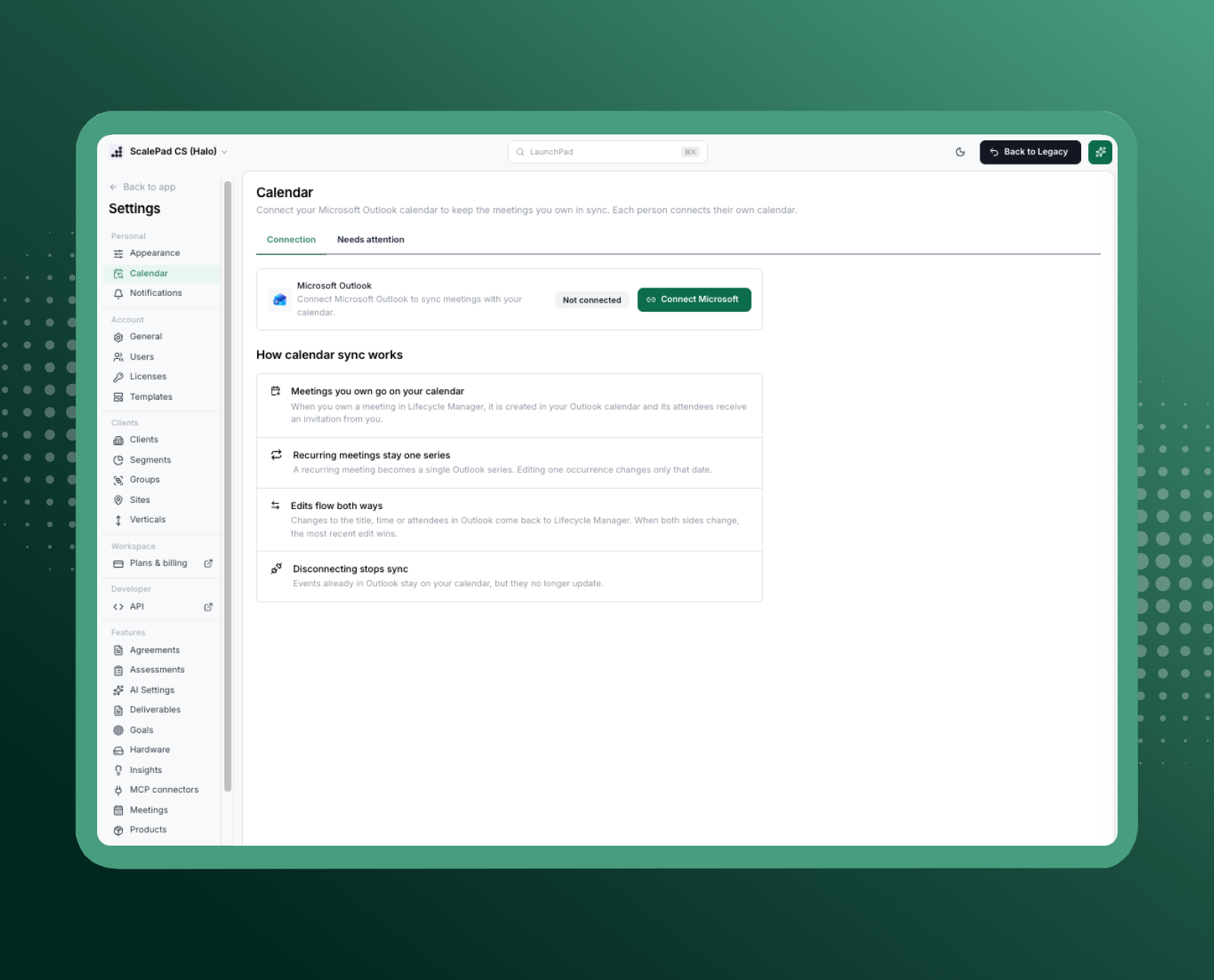
Meetings you create in Lifecycle Manager now land on your Outlook calendar, and attendees get a standard Outlook invite. Already have client meetings in Outlook? Pull them into Lifecycle Manager with attendees and RSVP status included. Change a meeting on either side, and the other follows.
Why is this important?
- No more double entry. Schedule once in Lifecycle Manager, where your client context and agenda live, and it appears where your day actually happens.
- Reschedules that don't break anything. When a client asks to move a meeting, update it from Lifecycle Manager or Outlook. Attendees are notified, and both calendars stay accurate.
- Start from what you already have. Import existing Outlook meetings instead of re-creating them, and see who has accepted without leaving Lifecycle Manager.
- Agendas travel with the invite. Meeting agendas sync to the Outlook event, so clients know what's planned before they join.
- Set up in a few clicks. Each user connects their own Microsoft account. No tenant admin step required.
- See attendee status in Lifecycle Manager, synced from the Outlook event
Recurring Meetings: set the schedule once
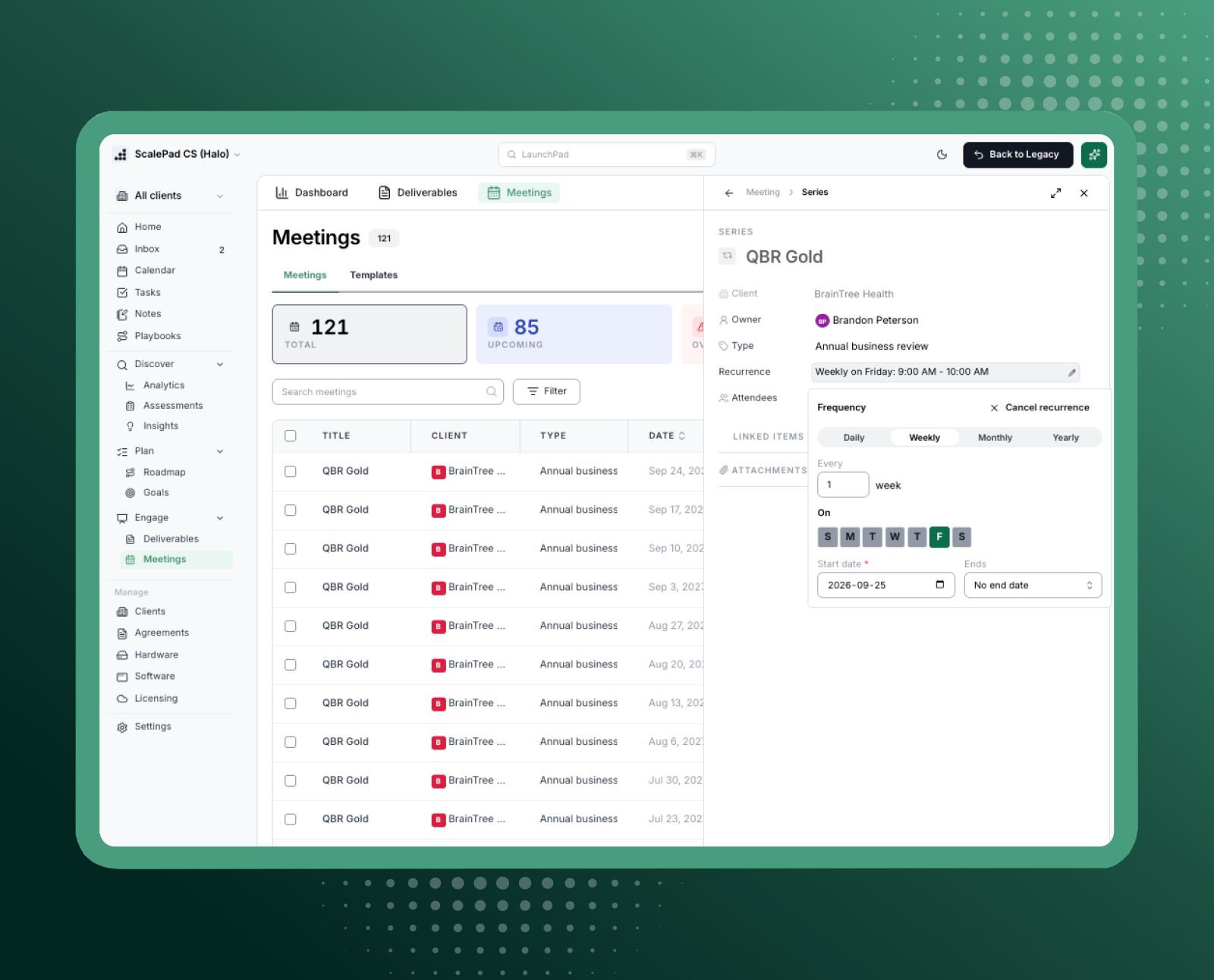
Most client relationships run on a rhythm: a monthly check-in, a quarterly business review, an annual strategy session. Now you can set that up once as a true recurring series instead of creating meetings one by one. The series lands in Outlook as a single recurring event, exactly as if you'd built it there.
Why is this important?
- Build your QBR cadence once. Set up a monthly strategic review or quarterly QBR with the same attendees across every occurrence.
- Flexibility without rework. Move one occurrence when a month gets busy, or update the whole series in a single edit.
- Stakeholders managed in one place. When a client adds a new decision-maker, add them to the whole series. Attachments carry through to every occurrence, too.
- One click to join. Each occurrence opens its own Outlook event and Teams link directly from the meeting.
Meeting Policies: know which clients are slipping, and fix it
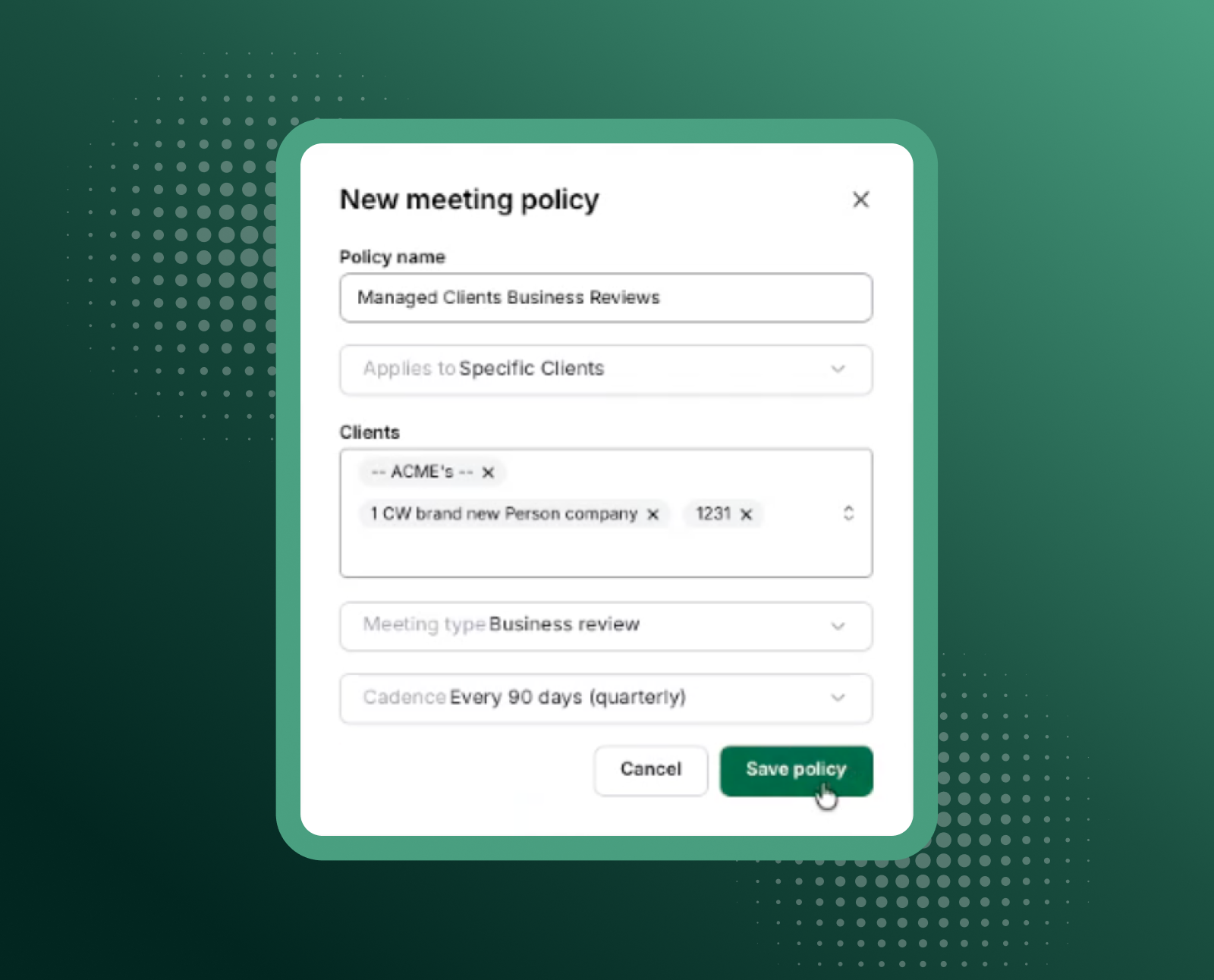
Define how often every client should be met with, and Lifecycle Manager tracks it for you. Set a policy like "every managed client, every 90 days" or "QBRs every quarter for our top segment," then see which clients are on track, about to slip, or already overdue.
Why is this important?
- Turn client commitments into a rule. Choose a cadence of 30, 60, 90, 180, or 365 days. Apply it to all clients, specific segments, or individual clients, for any meeting type or one in particular.
- Act before a client feels forgotten. Every client is marked Within policy, Soon out of policy (7 days or fewer left), or Out of policy. The Engage dashboard lists overdue clients with their last meeting date and a Schedule button to book the next one in a click.
- An honest view of coverage. Only completed meetings count, so a meeting that keeps getting pushed can't hide. Leaders get the visibility to support their team without spreadsheets or manual check-ins.
- Plan the week faster. Filter the Clients list by policy status to focus account managers on who needs attention next.
- Ready from day one. Every account starts with a default policy (any meeting within 90 days, for all clients) that admins can tailor.
Connect your calendar to your client commitments
Calendar sync keeps Lifecycle Manager and Outlook in agreement. Recurring Meetings sets the schedule. Meeting Policies makes sure you keep it. Together, they turn client meetings from a chore into a repeatable, measurable part of how you grow every account.
Available now
For all LMX users, connect your Microsoft account from your personal Calendar settings to turn on Outlook sync and start building recurring series. Admins can set up policies under Settings > Meetings > Policies.
Want to see these new capabilities in action? Log into the platform or Book a Demo today.